


Stop losing leads to slow websites and manual tasks. Get a complete Website and Workflow Checkup for just $97. Start Here→
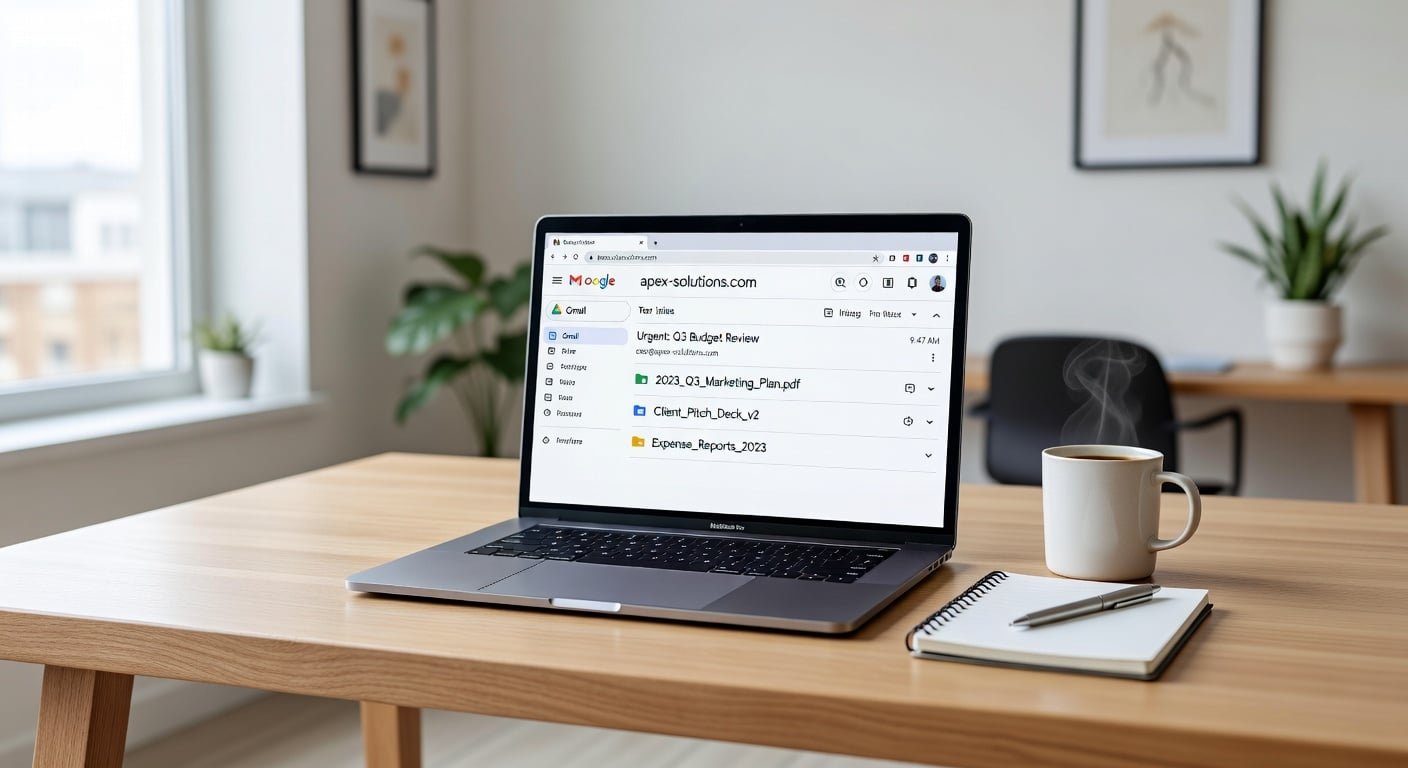
Setting up Google Workspace (formerly G Suite) properly from the start saves countless hours of frustration and ensures your team has professional email, secure file storage, and collaborative tools that actually work together seamlessly.
This comprehensive project guide walks you through every step of implementing Google Workspace for your small business, from domain verification to team training. Whether you’re starting fresh or migrating from another email provider, this systematic approach ensures nothing gets missed.
By the end of this project, you’ll have professional email addresses, organized cloud storage, shared calendars, video conferencing capabilities, and collaborative document editing all working together in one integrated system.
First impressions matter in business. When potential clients see an email from john@gmail.com versus john@yourbusiness.com, they make instant judgments about your professionalism and legitimacy.
Beyond appearances, Google Workspace provides essential business infrastructure. You get 30GB to unlimited storage per user (depending on your plan), advanced security features protecting sensitive business data, 99.9% uptime guarantee for email reliability, easy collaboration without version control nightmares, and professional video conferencing for client meetings.
The cost is remarkably reasonable at $6 to $18 per user monthly, making enterprise-level tools accessible to the smallest businesses.
Common scenarios requiring Google Workspace:
Your business is outgrowing free Gmail accounts and needs professional branding. You’re tired of “reply all” email chains and need better collaboration. Important emails are getting lost in personal inbox clutter. You need secure file sharing with clients and team members. Multiple people need access to shared business calendars. You want video meetings that don’t feel like technical nightmares.
Estimated Time: 4 to 6 hours over 2 to 3 days
Difficulty Level: Moderate (technical but guided)
Best completed: Over a weekend to minimize business disruption
Prerequisites needed: Domain name for your business (can purchase during setup), access to domain registrar login, credit card for Google Workspace payment, and list of team members needing accounts.
Before touching any settings, spend 30 minutes planning to avoid restructuring later.
Decisions to make upfront:
Determine which Google Workspace edition fits your needs. Business Starter ($6/user/month) works for most small businesses with 30GB storage. Business Standard ($12/user/month) provides 2TB storage and advanced features. Business Plus ($18/user/month) adds enhanced security and 5TB storage.
For teams under 5 people, Business Starter typically suffices. Larger teams or those working with large files benefit from Business Standard.
Plan your email addresses:
List every team member needing an email address. Establish a naming convention (firstname@domain.com or firstname.lastname@domain.com). Identify shared addresses needed like info@, support@, sales@, or hello@.
Consistency matters. Choose one naming format and stick with it for a professional appearance.
Organizational structure considerations:
Will you create organizational units (departments) for different team functions? Do certain team members need different access levels? Will contractors or part-time staff need limited access accounts?
For most small businesses, keeping structure simple initially works best. You can always add complexity as you grow.
Your domain is the foundation of your professional email system. If you don’t have one yet, purchase it before starting.
If you need to purchase a domain:
Google Workspace lets you purchase a domain during signup through Google Domains, typically $12 to $20 annually. Alternatively, purchase separately from Namecheap, GoDaddy, or your preferred registrar.
Choose a .com domain if available, as it remains most recognized and trusted. Keep it short, memorable, and professional.
Starting your Google Workspace signup:
Visit workspace.google.com and click “Get Started.” Enter your business name, employee count, and location. Provide current email address for setup communications. Choose whether to use existing domain or purchase new one.
Domain verification process:
Google requires verification proving you own the domain. This prevents anyone from creating email addresses using domains they don’t control.
The verification process involves adding a TXT record to your domain’s DNS settings. This sounds technical but follows a simple copy-paste process.
Step-by-step domain verification:
Log into your domain registrar (where you purchased the domain). Navigate to DNS settings or DNS management. Google provides a specific TXT record to add. Copy the TXT record exactly as provided. Add it to your DNS settings. Save changes and return to Google Workspace.
Click “Verify domain” in Google Workspace. Verification usually completes within minutes but can take up to 72 hours.
Common verification issues:
If verification fails, double-check you copied the TXT record exactly without extra spaces. Ensure you’re logged into the correct domain registrar. Some registrars cache DNS changes, requiring 24 to 48 hours. Contact your domain registrar’s support if you’re stuck on their interface.
With domain verified, you can create professional email accounts for your team.
Creating your first user (yourself):
You’ll create the super administrator account first. This account has complete control over Google Workspace, so choose a strong, unique password.
Use a password manager like LastPass, 1Password, or Bitwarden to generate and store this critical password. Enable two-factor authentication immediately for security.
Adding team member accounts:
Navigate to Admin Console, then Users. Click “Add New User” for each team member. Enter first name, last name, and desired email address. Generate temporary passwords for each user.
You can create accounts individually or bulk upload via CSV file for larger teams.
Setting up email groups:
Groups create email addresses that forward to multiple people, perfect for team@, sales@, or support@ addresses.
Navigate to Groups in Admin Console. Create group with desired email address. Add team members who should receive emails sent to this address. Configure group settings (who can post, who can view members).
Groups eliminate the need for reply-all chains and ensure multiple people see important messages.
Organizational units for different access levels:
If you have contractors, part-time staff, or different departments needing different settings, create organizational units.
Navigate to Organizational Units in Admin Console. Create units like “Full Time,” “Contractors,” or “Sales Team.” Move users into appropriate units. Apply different settings to each unit as needed.
Most businesses under 10 people can skip organizational units initially and add them later if needed.
Proper email configuration ensures deliverability and security.
MX records for email delivery:
MX (Mail Exchange) records tell the internet where to deliver email for your domain. You must update these at your domain registrar for email to work.
Google provides specific MX records to add. Navigate to your domain registrar’s DNS settings. Remove any existing MX records. Add Google’s MX records exactly as specified with correct priority numbers.
Email typically starts working within 15 minutes to 2 hours after MX record changes.
SPF, DKIM, and DMARC for email authentication:
These technical-sounding protocols prevent spammers from sending email pretending to be from your domain and improve your email deliverability.
SPF (Sender Policy Framework) specifies which servers can send email from your domain. Add the TXT record Google provides to your DNS settings.
DKIM (DomainKeys Identified Mail) adds a digital signature proving emails actually came from your domain. Generate DKIM key in Google Admin Console, then add the provided TXT record to DNS.
DMARC (Domain-based Message Authentication) tells receiving servers what to do with emails failing authentication. Add DMARC TXT record to DNS settings.
While technical, these are simple copy-paste operations that dramatically improve email reliability.
Security settings to enable immediately:
Require two-factor authentication for all users. This prevents account compromises even if passwords are stolen. Navigate to Security settings and enforce 2FA.
Enable advanced phishing and malware protection in Gmail settings. Set password strength requirements. Configure session length and timeout settings. Enable alerts for suspicious login attempts.
Mobile device management:
If team members access business email on phones, enable basic mobile management to protect business data on personal devices.
This allows you to remotely wipe business data if a phone is lost without affecting personal data.
Google Drive becomes your business file storage system. Proper organization from the start prevents the chaos that plagues many businesses.
Creating a folder structure:
Design a logical folder hierarchy before uploading files. Create top-level folders for major business areas: Clients, Projects, Marketing, Finance, HR, Operations.
Within each top-level folder, create subfolders as needed. Consistency matters more than perfection.
Shared drives for team collaboration:
Shared drives (formerly Team Drives) belong to your organization rather than individuals. Files remain accessible even if the person who created them leaves the company.
Create shared drives for different teams or projects. Add team members with appropriate permission levels (viewer, commenter, editor). Move relevant files into shared drives.
Shared drives are superior to personally sharing files from “My Drive” for business purposes.
Setting appropriate sharing permissions:
Understand Google Drive permission levels. Viewer can see and download but not edit. Commenter can add comments and suggestions but not edit directly. Editor can make changes and delete files.
Default new files to private, then share intentionally rather than making everything public.
Migration from existing storage:
If you’re moving from Dropbox, OneDrive, or local storage, plan the migration carefully.
Use Google Drive for Desktop to sync files. Migrate in phases rather than everything at once. Communicate clearly with team members about the transition. Keep old storage accessible temporarily during transition.
Google Workspace includes powerful collaboration tools beyond email.
Google Calendar for scheduling:
Create shared calendars for team schedules, client meetings, project deadlines, and company events.
Set up conference rooms or resources if you have physical meeting spaces. Configure working hours and automatic decline of meetings outside those hours. Enable meeting notifications and reminders.
Google Meet for video conferencing:
Meet is built into Gmail and Calendar, making video meetings seamless. Schedule meetings directly from Calendar. Share meeting links with clients (they don’t need Google accounts). Enable background blur or replacement for professional appearance. Test audio and video before important client meetings.
Google Chat for team messaging:
Chat provides quick team communication without cluttering email. Create rooms for different projects or teams. Use direct messages for quick questions. Integrate with other Google Workspace apps for easy file sharing.
Google Docs, Sheets, and Slides for collaboration:
These replace Microsoft Office for most small business needs. Multiple people can edit simultaneously. Version history tracks all changes with ability to restore previous versions. Comments and suggestions enable clear feedback. Sharing is simple with permission controls.
The best-configured system fails if your team doesn’t use it properly.
Creating getting-started guides:
Document your specific setup with screenshots. Include how to access email on desktop and mobile. Explain your folder structure and where to save files. List shared resources and how to access them.
Written guides reduce repetitive support questions.
Conducting training sessions:
Hold a 30 to 45 minute training session covering email basics, calendar usage, file storage and sharing, Meet for video calls, and security best practices.
Record the session for team members who can’t attend and future new hires.
Common user questions to address:
How do I access email on my phone? Where should I save client files? How do I share a document with someone? What’s our video meeting link? How do I add my signature to emails?
Anticipating questions and addressing them proactively saves time.
Before relying completely on your new system, test thoroughly.
Email testing checklist:
Send test emails between team members. Send test email to external addresses (Gmail, Outlook). Verify emails aren’t going to spam folders. Test email forwarding and groups. Confirm mobile email works on iOS and Android devices.
File sharing verification:
Test sharing files with view, comment, and edit permissions. Verify external sharing works for client access. Confirm shared drives are accessible to appropriate team members. Test mobile access to files.
Common issues and solutions:
Emails going to spam often means DKIM and SPF records aren’t configured correctly. Calendar invites not working usually indicates timezone settings are wrong. Files not syncing suggests Google Drive Desktop needs reinstallation. Login issues typically require clearing browser cache or trying incognito mode.
Your Google Workspace needs periodic attention to stay optimized.
Monthly maintenance tasks:
Review user accounts and remove departed employees. Check storage usage and upgrade if approaching limits. Review security reports for suspicious activity. Update emergency contact information. Audit file sharing for accidentally public files.
Quarterly reviews:
Evaluate whether current plan still fits your needs. Review organizational structure as team grows. Update training materials based on common questions. Consider additional Google Workspace tools you’re not using.
When to upgrade your plan:
You’re consistently near storage limits. You need advanced security features. Enhanced support becomes necessary. You want longer video meeting limits. Advanced admin controls become important.
Before considering this project complete, verify:
Google Workspace offers incredible value, but setup complexity can be overwhelming if you’re not technically inclined or simply don’t have time to invest 4 to 6 hours in configuration.
Common reasons businesses seek professional help include uncertainty about DNS record configuration, needing migration from Microsoft 365 or other email providers, wanting advanced security configurations, requiring custom integrations with other business tools, and preferring expert training for their team.
Explore our Google Workspace setup service where we handle complete configuration, data migration, security hardening, team training, and ongoing support so you can focus on running your business while we ensure your digital infrastructure works flawlessly.
Completing this Google Workspace setup project gives your business professional communication infrastructure that scales as you grow. The investment of time now pays dividends daily through improved collaboration, enhanced security, and professional presentation to clients.
The systematic approach outlined here ensures you don’t miss critical configuration steps that create problems later. Take your time with each phase, test thoroughly, and document your specific setup for future reference.
With Google Workspace properly configured, your team has enterprise-level tools enabling productivity and collaboration that previously required IT departments and significant budgets.
How long does Google Workspace setup actually take?
Technical setup takes 4 to 6 hours spread over 2 to 3 days to allow for DNS propagation and testing. Team training adds another 1 to 2 hours. Rushing the process increases the likelihood of configuration mistakes.
Can I migrate existing emails to Google Workspace?
Yes, Google provides migration tools for Gmail, Outlook, and other email systems. For businesses with significant email history, professional migration services ensure nothing is lost during transition.
What happens to our email if we cancel Google Workspace later?
You can export all data before canceling. However, your professional email addresses stop working immediately upon cancellation. Most businesses find Google Workspace valuable enough to maintain indefinitely.
Do clients need Google accounts to join Meet video calls?
No, anyone can join Google Meet calls through a web browser without a Google account. This makes it excellent for client meetings where you can’t control what software they use.
How many email addresses can we have?
You can create as many email addresses as you have user licenses. So with 5 licenses, you could have 5 individual email addresses plus unlimited group addresses that forward to those users.



